Keep one buy list in the Vault and buy the best deals first

A toy truck is on sale for $8 at a store and sells for about $20 on Amazon. Five more deals sit in a notes app and two in a spreadsheet. By Friday it is hard to say which one was better. One buy list fixes that.
In SourceDock, that list is the Vault. It is part of SourceDock's online arbitrage software, and it puts every deal in one table with its profit and ROI. The Vault is on every plan, and the pricing page lists SourceDock's plans and prices.
How do you add a product to the buy list?
Open Vault, type or paste an ASIN or an Amazon link, and click Add. One product opens Add to Vault, which asks for your buy cost. Type $8.00 for the truck and it shows Net profit if bought now and a gate check that reads OPEN, GATED or BLOCKED.
BLOCKED means you cannot sell the product, so skip it. GATED means Amazon limits who may sell it, so check it before you buy. A related post shows how to check if you can sell a product before you buy it by scanning a list with the Gate Scanner.
Several products can go in at once. A list of ASINs opens Paste ASINs, with one buy cost for all of them. A CSV file asks you to map the ASIN and the buy cost per unit. The Chrome extension, Scout and the Gate Scanner can each save to the Vault too.
How does the Vault work out profit and ROI?
The truck is made up, but the math is the same for any product.
- Sale price $20.00
- Minus referral fee $3.00
- Minus FBA fee $4.00
- Minus buy cost $8.00
- Profit is $5.00
ROI is profit divided by buy cost, so $5.00 on $8.00 is 62.5%. Margin is profit divided by the sale price, so $5.00 on $20.00 is 25%.
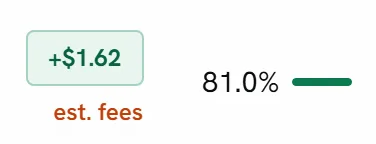
Hover the profit to see every line, including sale price, referral fee, FBA fee, storage, prep and buy cost. A line SourceDock can't work out shows a dash and says why.
Sales are not profit. The $20.00 sale price is money in, and the $5.00 is closer to money kept.
How fresh are the numbers?
The sell price is the Buy Box from a seller Amazon ships for. When there is no such offer, the row can show the 90-day FBA average instead, and it says No FBA offer.
Each price shows its age. The age turns amber after a day and red after 7 days. When it is red, check the price on Amazon before you buy.
Fees are an estimate until Amazon answers, and until then the profit may be marked est. fees. With a connected store, the fees are Amazon's own quote for that product.
How do you sort the list to find the best deals?
Click a column name to sort by it. Click ROI and the list sorts by return. Saved products also get AlphaChaser product grades from S to F, with the reasons for each grade, as a second opinion and not a promise.

Best profit and Best ROI only count products with a buy cost above $0 and a price checked in the last 24 hours. Click either one and the table jumps to that product.
Filters cuts the list down.
- Prospect, then Not yet bought, hides what you already bought.
- Margin sets an ROI and a minimum profit.
- Demand sets a total seller count and sales per month.
Two trend columns show where a product is heading. Price Trend in green means the price went up, and amber means it went down. Seller count trend in green means fewer sellers, and amber means more sellers are arriving.
Two labels mean a product should wait. Not listed means Amazon no longer lists it. No buyable offers on Amazon right now means nobody can buy it today.
What is the most you can pay for a product?
Open the row menu and pick Price History. It shows Max landed buy cost, the most you can pay and still meet your profit calculator goals.
Type a number in Test landed cost. The chart turns green on days the Buy Box made a profit at that cost and red on days it didn't. This is built on past prices, so it can't promise next month.
Can the list watch a product for you?
Yes. Click Set alert on a product and pick Offers drop to, Profit reaches, ROI reaches, Price goes above or Price drops below. Click Save alert. When the alert fires, it shows on the Alerts page.
Questions sellers ask
Why does a row show no profit?
The row has no buy cost. A product saved from the Gate Scanner comes in that way. Its Cost cell reads No cost yet, and the profit reads "No buy cost. Profit not shown." Click Cost on the row and type what you would pay.
Is the profit in the Vault exact?
No. Treat every profit in the Vault as an estimate, not a promise. The fees and the sell price behind it can both be out of date, which is why each one is marked.
Which deals should be bought first?
Add your next three deals to the Vault, type each buy cost and sort by ROI. Buy from the top, and check any gated or red rows first. SourceDock's online arbitrage software page covers what comes after the buy.